Roughly ages 8–11
My First Game
Make a character move, add a challenge and keep score. Learn events, loops and debugging with Scratch or MakeCode.
Make a catch game →Free resources · Ages 8–18 + a younger-maker option
The Kids Game & AI Lab helps you choose a tool, make something that works, and understand how you made it.
Start where you are
Roughly ages 8–11
Make a character move, add a challenge and keep score. Learn events, loops and debugging with Scratch or MakeCode.
Make a catch game →Roughly ages 10–14
Teach a model with examples, test its mistakes and connect predictions to a project. Adult setup may be needed.
Train an object classifier →Roughly ages 13–18
Build with GDevelop and optional AI, explore Godot, or combine mechanics in an original game mashup. Experienced GameMaker creators can try migration with GM2Godot.
Build Star Courier →Make something today
Each tutorial includes a finish line, numbered steps, checkpoints and a challenge to make the project your own.
9 projects
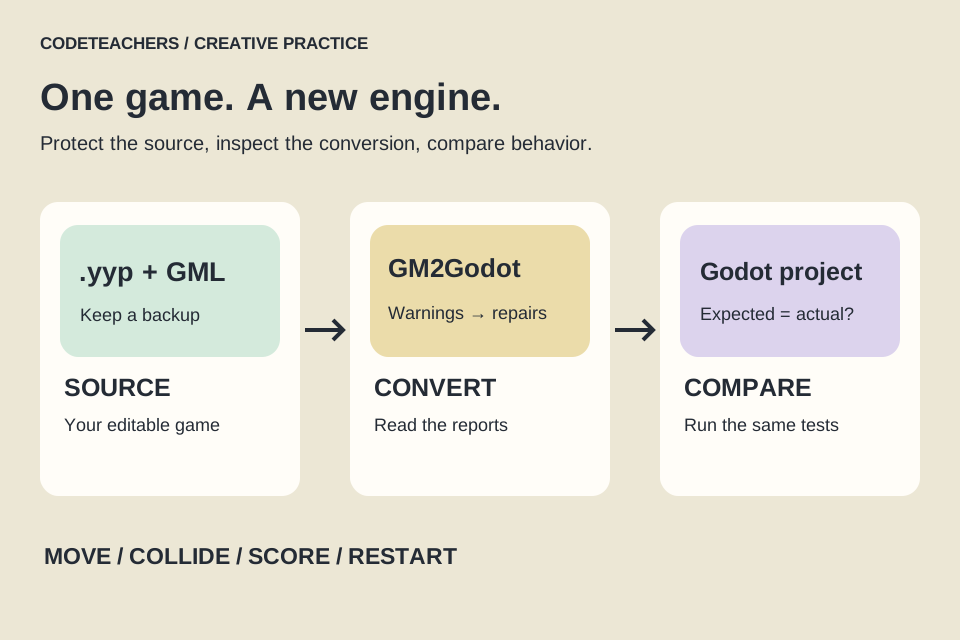
GM2Godot + Godot · 2 sessions
An advanced teen project: protect your original, convert editable source, read the reports and test the game one behavior at a time.
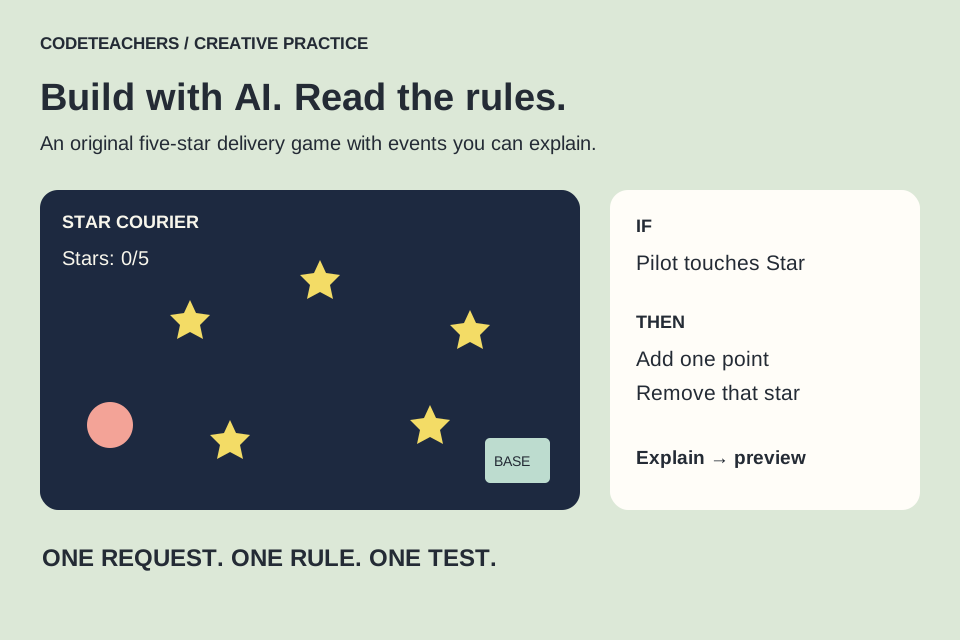
Start this project →GDevelop + optional AI · 60–90 min
Build Star Courier: move a pilot, collect five stars, return to base and restart. Use small AI requests and inspect the events they create.
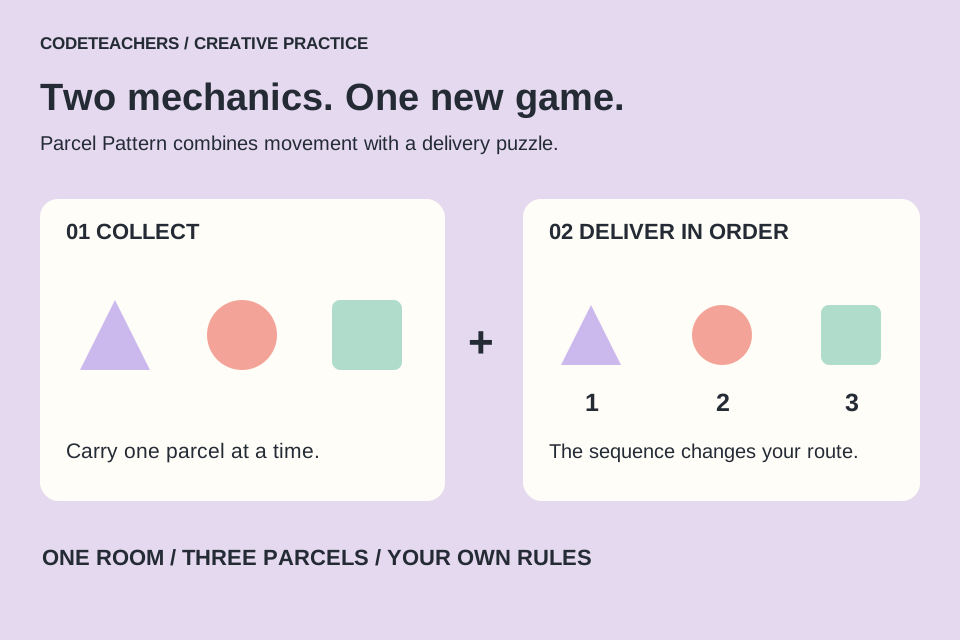
Start this project →Scratch / GDevelop / Godot · 2 sessions
Mix a movement challenge with a puzzle rule, build the smallest version and find out whether the combination is fun.
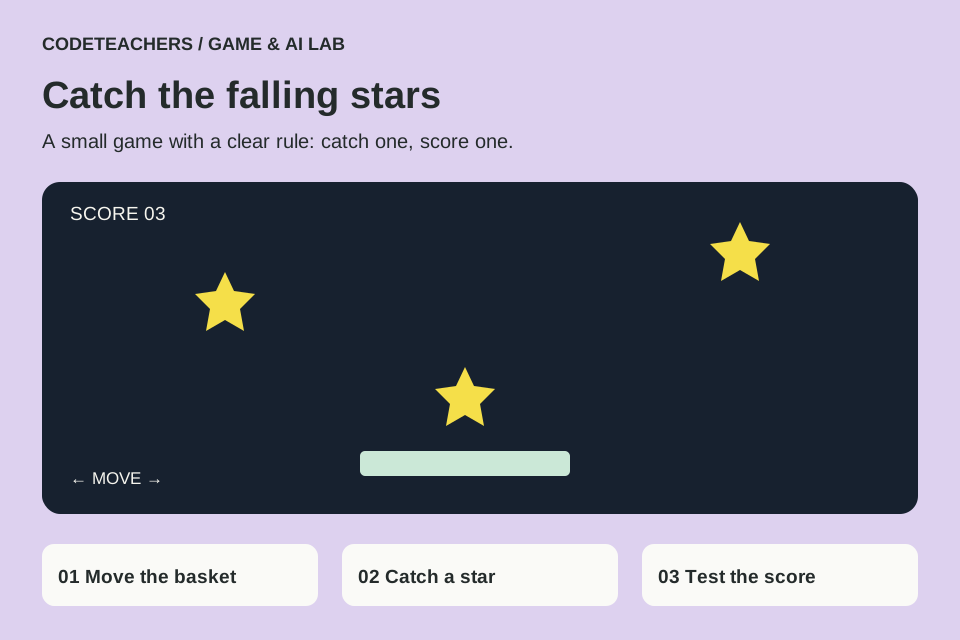
Start this project →Scratch · 45–60 min
Build a moving basket, a falling star and a score. Then change the rules and test your own version.
Start this project →Scratch · 45–60 min
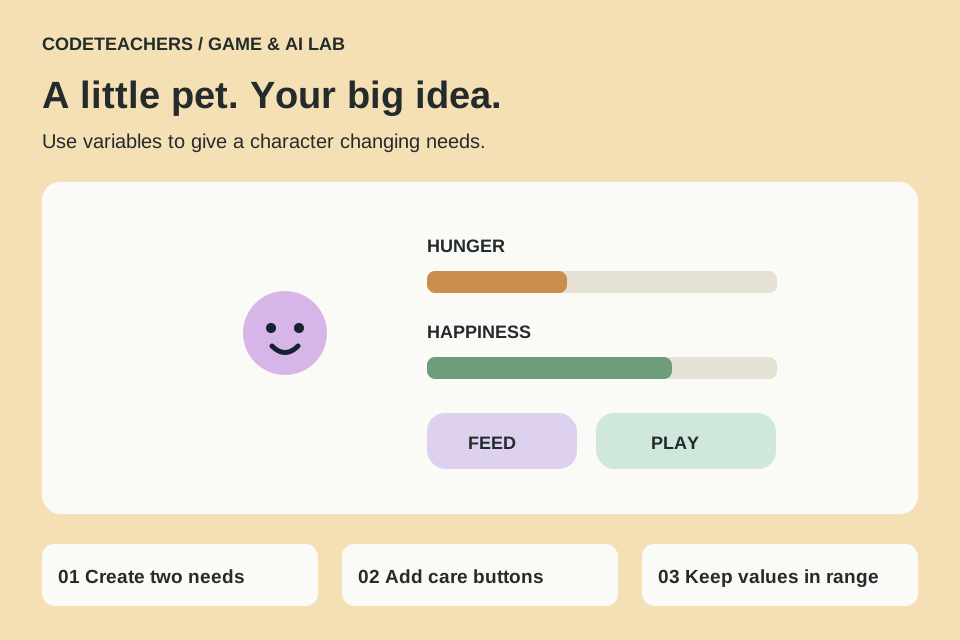
Give a character changing needs, working care buttons and a personality of its own.
Start this project →MakeCode Arcade · 45–60 min
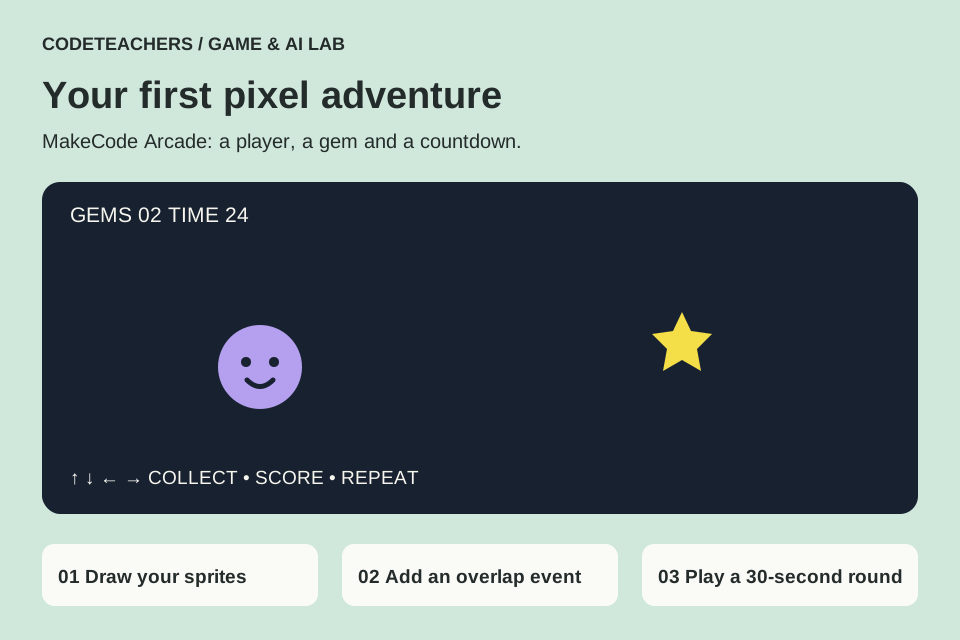
Move a player, collect a gem, count points and race a countdown in a browser.
Start this project →Teachable Machine · 30–45 min
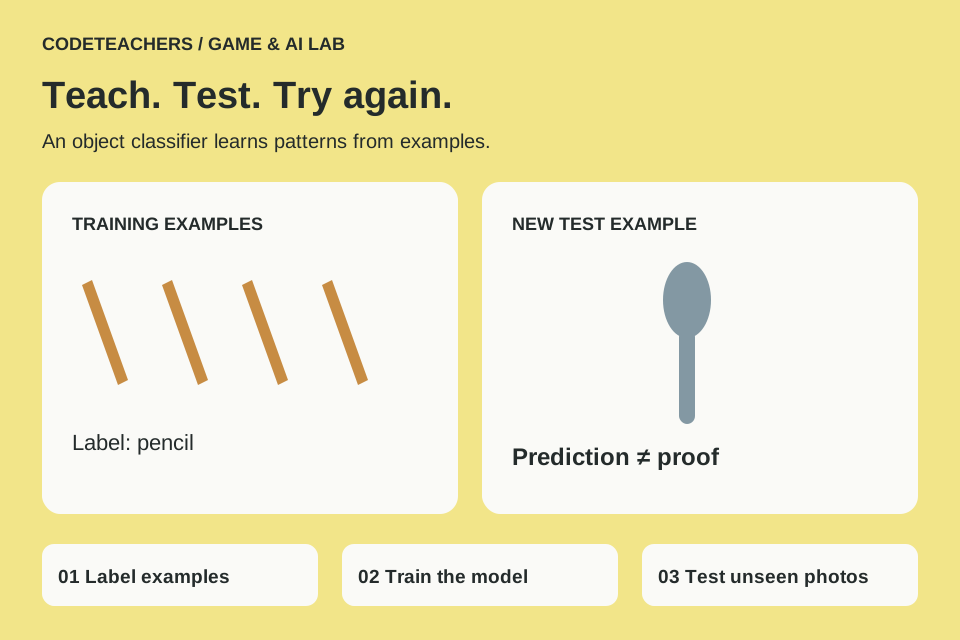
Collect object examples, test unseen photos and discover why a confident prediction can still be wrong.
Start this project →Machine Learning for Kids · 60–90 min
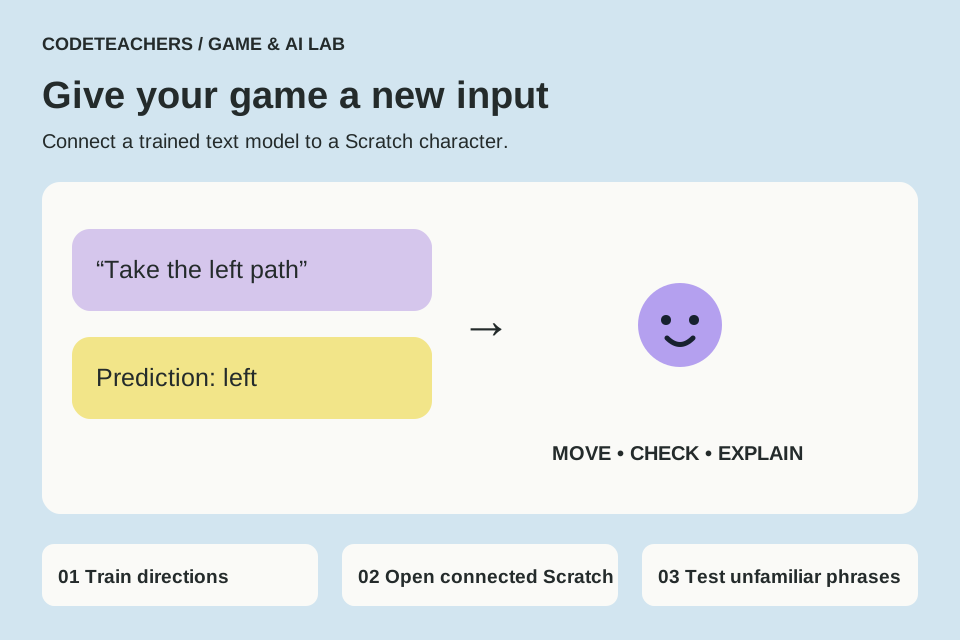
Train a text classifier to recognize directions, then make a character respond to its predictions.
Start this project →Godot · 60–90 min
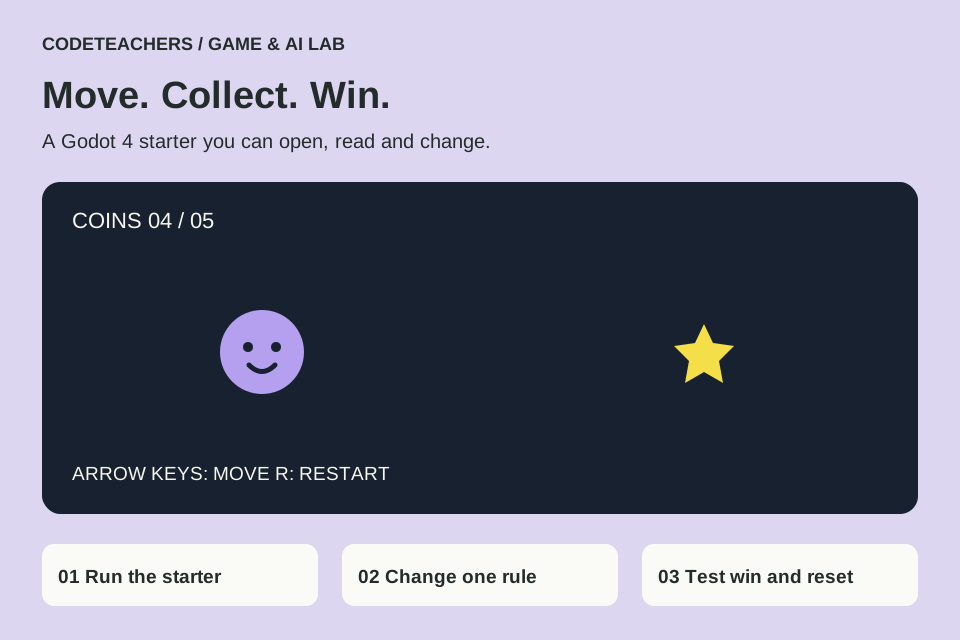
Use a small Godot 4 starter to understand input, game state and a five-coin finish line.
Start this project →No matching projects. Clear your search or choose All projects.
Two useful ideas
An eligible assistant can explain an error, suggest a test or help an adult prepare an activity. The learner still makes decisions and checks the result.
With Machine Learning for Kids or Teachable Machine, examples teach a model to recognize a pattern. A Scratch character that follows fixed rules is a coding project; it does not automatically use machine learning.
Try the hint-first coaching routine →A useful tool for each next step
Start with one. These are independent editorial selections, not affiliate links. Suggested ages describe the lesson fit; each provider’s current account rules still apply.
Make games · First-time coder
A catch game, maze, virtual pet or animated story.
You’ll learn: Events, loops, variables, conditions and debugging with visual blocks.
Start in the editor and save a project file locally. An account is needed for online saving and community sharing; an adult should review those settings.
Official setup / help ↗Make games · Beginner → growing
A pixel-art collector, racing game or space adventure.
You’ll learn: Sprites, coordinates, controller input, collisions and scoring; move from blocks to JavaScript.
Use the simulator without buying a device. Save a local copy; have an adult review any public share link.
Official setup / help ↗Train & explore AI · Some Scratch experience
A Scratch character that responds to a classifier you train.
You’ll learn: Collect and label examples, train a model, test unfamiliar inputs and connect predictions to code.
An adult or teacher should choose the project type and account setup. Some models depend on external services. Use the Scratch editor launched from the project for its model blocks.
Official setup / help ↗Train & explore AI · First AI experiment
A pencil-versus-spoon classifier, then a more challenging object test.
You’ll learn: Training data, labels, held-out tests, confidence and misleading patterns.
Use object photos and preview locally. An adult reviews camera permissions and export choices. Training a model does not automatically connect it to a game.
Official setup / help ↗Train & explore AI · Blocks → Python
An interactive character, coding experiment or robot project.
You’ll learn: Block coding, Python, machine learning and physical computing.
Adults should preview the exact activity, camera/microphone use and account requirements. Start with object data and the official beginner materials.
Official setup / help ↗Make games · Growing game maker
A platformer, puzzle game or top-down adventure.
You’ll learn: Visual events, conditions, actions, behaviors and playtesting.
Education plans offer teacher-managed student accounts. Have an adult choose the account setup and review cloud publishing. AI assistance is optional.
Official setup / help ↗Make games · Advanced migration project
Move your own small, editable GameMaker project into Godot.
You’ll learn: Project structure, compatibility reports, code comparison and regression testing.
Adult setup recommended. Back up your source and convert into a separate folder. Output requires review; compiled games are not accepted. Use the Godot version recommended by the selected release.
Official setup / help ↗Make games · Ready for text coding
An original 2D coin collector, followed by a small platformer.
You’ll learn: GDScript, nodes, scenes, input, game state and debugging.
The desktop editor can be used locally without a cloud account. Install the standard Godot 4 editor with adult help. Our starter uses GDScript, not the .NET edition.
Official setup / help ↗Physical computing · Beginner with adult setup
A movement recognizer, activity timer or interactive wearable.
You’ll learn: Collect sensor examples, train and test a movement model, then program a response in MakeCode.
CreateAI requires no login. Follow the official equipment guide before buying hardware; select movements that are comfortable and accessible to the learner.
Official setup / help ↗Make games · Early reader
An animated story or a simple interactive scene.
You’ll learn: Sequencing, cause and effect, character movement and storytelling.
An adult installs the app and helps save work on the device. A separate early-learning option for children younger than our main 8–18 audience.
Official setup / help ↗Make apps · Growing coder
A quiz, useful mobile tool or interactive app.
You’ll learn: Event-driven blocks, interface design, data and testing on a device.
Adult or school support may be needed for sign-in, Companion installation and device/network setup. Check component support for the target device.
Official setup / help ↗Train & explore AI · First AI activity
Try AI for Oceans or a guided AI dance activity.
You’ll learn: Examples, classification and thoughtful choices about AI.
Preview the selected lesson and its account requirements. These are external guided activities, not CodeTeachers-hosted games.
Official setup / help ↗For parents & instructors
Look at reading, typing and past projects as well as age. A small game is a useful first milestone.
Compare Scratch, GDevelop and Godot →Let the learner explain the bug, predict a change and test it. Use AI assistance only through an appropriate, eligible setup.
Read the coaching guide →Use object photos and fictional examples. Save locally and review a project before public sharing. Offer keyboard or file-upload alternatives to camera-based activities.
Read our AI safety approach →Build together
Explore CodeTeachers’ existing workshops, weekly Creator Club and school programs. Check the program page for current availability and enrollment details.