Teaching fit: ages 13–18 with adult support · Plan for: two 60–90 minute sessions; repairs can take longer
You need: A computer, an adult-approved GM2Godot download, the Godot version recommended by its release, and your own working, editable GameMaker project.
Finish line: A separate Godot project, a comparison checklist and one understood repair or documented limitation.
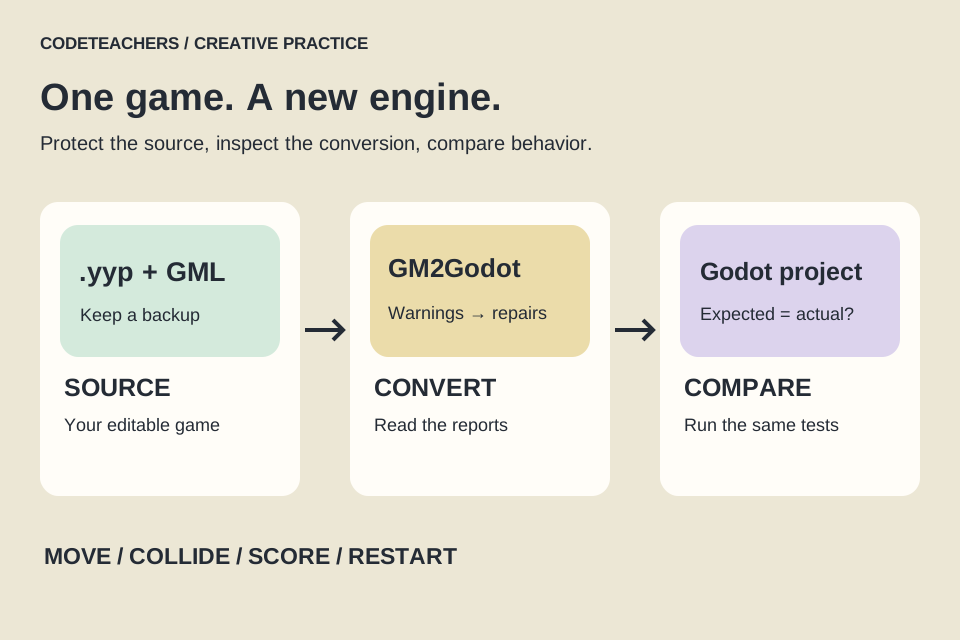
GM2Godot is a bridge between engines. It translates supported GameMaker source and assets into a Godot project. It cannot reconstruct an editable project from a compiled game. The maintainer describes the result as a migration starting point, so a completed conversion still needs testing. This activity is for learners who already understand a small GameMaker game; beginners can start with our Godot coin collector.
STEP 01
Choose a game small enough to understand.
Use a project you made or have permission to modify. Pick one room, a moving player and a collectible. Leave networking, purchases and complex extensions out of this first attempt. Run the original and write down five observable behaviors: starting position, movement controls, collision, score and restart. If the original fails a check, fix it before converting. A converter cannot tell which original behavior you intended.
Make a folder called MigrationNotes outside both projects. Save a short description of the game there. For each behavior, write what you will do and what should happen. “Touch one coin: it disappears and adds one point” is more useful than “scoring works.”
STEP 02
Prepare two separate folders.
Keep a backup of the complete GameMaker project, including its .yyp file, scripts and assets. Create a separate, empty folder for the Godot output; do not put it inside the source project. Download GM2Godot from the linked repository’s Releases page with adult help. Use that release’s installation instructions and checksum guidance.
At our review, the README names GameMaker LTS 2026 and Godot 4.7.2 as targets. Check the release you actually install: versions and compatibility can change. Close Godot before conversion. A new empty output folder makes the first experiment easier to undo.
STEP 03
Convert with the desktop interface.
Open GM2Godot. Set GameMaker Directory to the project folder containing the .yyp file. Set Godot Directory to the empty output folder you created. In Settings, review conversion options and choose the relevant GameMaker target platform. Click Convert and keep the log. The platform choice controls conversion settings; it does not export a finished game.
Checkpoint: the output should contain project.godot. If preflight rejects the folder, read the message and choose a real, empty folder. Do not erase an unrelated directory to make it pass.
STEP 04
Turn reports into a repair list.
Read the logs and the generated gm2godot/ reports before opening the game. Make three columns in MigrationNotes: message, affected feature, next test. The compatibility guide distinguishes implemented, partial and unsupported behavior. “Implemented” is not a guarantee that every combination will behave like the original.
Deal with problems in this order: conversion failure, Godot parse/import errors, broken core gameplay, then appearance. Record the exact first error and the named file. If the output is incomplete, choose a smaller source project or a supported feature before trying again. Re-convert into a fresh folder so you keep your manual repairs.
STEP 05
Open Godot and compare the same actions.
In Godot’s project manager, import the generated project.godot and let resources import. Run the project. If Godot asks for a main scene, consult the generated room files and reports, choose the scene corresponding to your original starting room, and record that choice. Work through the same five checks you ran in GameMaker.
- Movement: press and release each direction. Does the player stop and stay in the intended area?
- Collision: approach the same wall or collectible from different sides.
- Score: collect one item, then try touching that location again.
- Restart: verify the player, score and collectibles all return to their initial state.
- Presentation: compare sprite scale, origin, draw order and sound separately from game rules.
A black screen is a symptom, not a diagnosis. Check the debugger, starting scene and camera before changing movement code. Save notes about both passing and failing behavior.
STEP 06
Use AI to explain one small mismatch.
An adult should choose an eligible AI tool and review what is shared. The basic lesson does not need GM2Godot’s optional Deep conversion extension. If using an assistant, share only a small permitted excerpt and the relevant error, with project secrets and identifying information removed.
I am learning to migrate my own small game.
GM2Godot release: [version]. Godot: [version].
Original behavior: [one specific action and result].
Converted behavior: [what actually happens].
Error and smallest relevant excerpt: [paste].
Explain one likely cause. Ask for missing context.
Suggest the smallest change and one test.
Do not rewrite the project or invent unsupported APIs.
Predict the effect before editing. Keep the working version, change one thing, and repeat the test. If the suggestion introduces a new error, restore your copy and check the official Godot documentation. You should be able to explain the repair without reading the AI response.
STEP 07
Finish with evidence.
Your result can be a working small port or a clearly documented unsupported feature. Both teach useful engineering when you can show the evidence. Save the original, the converted project, the tool versions and your comparison notes. Do not claim a full migration just because the project opens.
Next challenge: change one rule in Godot, such as the number of coins needed to win, then test again. To invent a new game, try our game mashup guide.
Further reading
GM2Godot README and release links
GM2Godot: first conversion and destination rules