Teaching fit: ages 13–18 with adult support · Plan for: 60–90 minutes
You need: GDevelop in a browser or desktop app; an adult-approved account if using its AI; paper for a game plan.
Finish line: One playable screen with movement, five collectibles, a delivery goal and a reliable restart.
GDevelop is our pick for this activity because visual conditions and actions remain readable while its built-in AI can help create and explain them. This is an editorial recommendation for this lesson, not a claim that one engine is best for everyone. Core game making and optional AI allowances are different: check the current plans and education setup before starting. Suggested teaching ages do not override account rules.
STEP 01
Write the rules before opening the assistant.
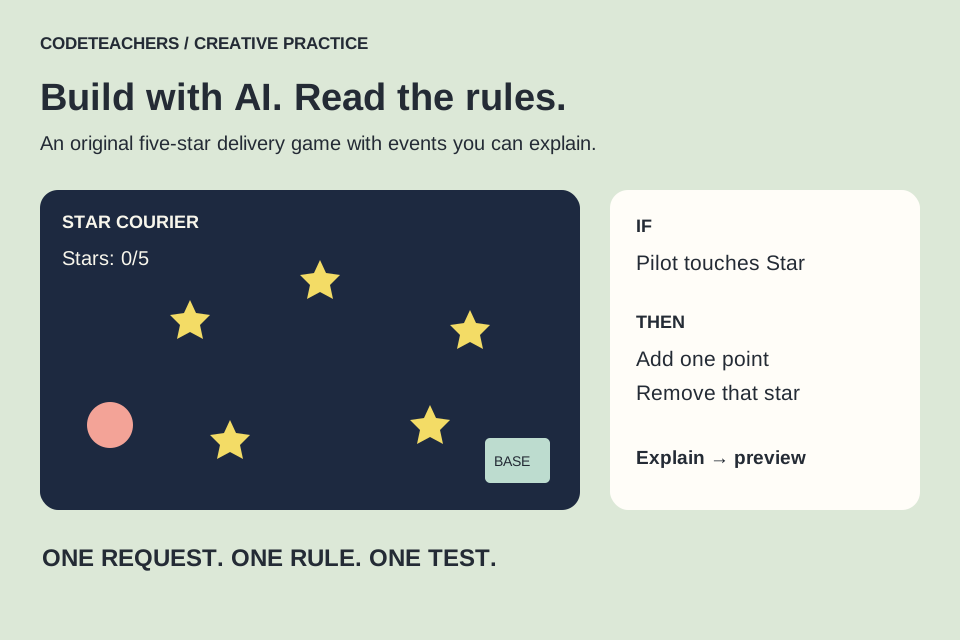
Our original example is Star Courier. Use arrow keys to move Pilot around one screen. Touch five Star objects to collect them. Then touch Base to deliver them and win. Press R to restart after winning. There are no enemies or timer yet. Write these rules on paper and sketch a simple arrangement with space between stars.
Create a blank 2D project and one scene called Delivery. Save a working copy named StarCourier-01. Choose a landscape window, for example 960 × 540. Make three Sprite objects named Pilot, Star and Base using simple drawings. Place one Pilot, five separated Star instances and one Base. Add text objects ScoreText and MessageText.
STEP 02
Make movement work first.
Add the Top-Down Movement behavior to Pilot. Use its default arrow controls and a comfortable speed, such as 180 pixels per second. Disable rotation if you want the drawing to keep facing upward. Preview before adding anything else. Keep the scene unobstructed for this first version.
Open Ask AI. Current documentation describes an Auto edit switch: turn it off while asking for an explanation, then approve only the change you intend. Older interfaces may label a build mode differently. Follow the official guide linked below if your controls differ.
In my Delivery scene, Pilot uses Top-Down Movement.
Explain how to keep Pilot fully inside the 960 by 540 game area.
Use Pilot’s actual dimensions and origin.
Change only boundary behavior after I review your plan.
Then tell me which events you added and how to test each edge.
Checkpoint: hold each direction at an edge and try each corner. If the sprite disappears, inspect the boundary values and sprite origin before continuing.
STEP 03
Collect stars and show the count.
Create scene variables StarsCollected = 0 and Delivered = false. A scene variable belongs to this running scene. In the Events tab, add an event with a Pilot–Star collision condition and Delivered = false. Its actions add 1 to StarsCollected and delete the colliding Star. Deleting that instance stops the same collectible scoring repeatedly.
Add an event that updates ScoreText to show the current count and the target five. You can request that small display change through Ask AI. Preview after collecting one star: the display should change once and that star should disappear. If it jumps by two, check for duplicate collision events or overlapping star instances.
Update only ScoreText to show “Stars: [StarsCollected]/5”.
Use my existing scene variable. Do not create a second score variable.
Explain the expression used to display the number.
No AI access? Use the variable and text actions in the event editor and the official collectible tutorial below. The same rules work without the assistant.
STEP 04
Add delivery and restart.
Create an event with three conditions: Pilot collides with Base, StarsCollected equals 5, and Delivered is false. Set Delivered to true, set MessageText to “Delivered! Press R to play again”, and deactivate Pilot’s movement behavior. A separate event checks Delivered is true and R was released, then changes to the Delivery scene to start a new run.
At the beginning of the scene, explicitly reset StarsCollected to 0, Delivered to false and MessageText to an empty string. Ask AI to explain each event it adds; compare every object and variable name with your existing ones. Saving a separate copy before the request gives you a clear recovery point.
STEP 05
Play the awkward cases.
- Go to Base with zero stars: the game must continue.
- Collect four stars and touch Base: no win yet.
- Collect the fifth star: winning should still require returning to Base.
- Touch one star and wait: it must add exactly one point.
- After winning, movement stops and R starts a clean run with five stars.
- Play two full rounds and test all four screen edges.
Write expected and actual results for each check. When something fails, report the exact action that caused it. “It broke” gives an assistant very little to work with.
STEP 06
Make one decision that is yours.
Change the delivery requirement to three stars, add a route choice, or change the setting to a garden delivery. Choose one change, predict how it affects play, then test with a partner. Ask them what they thought the goal was before explaining it.
Keep a small record: my idea, AI’s suggestion, the event I accepted, the test I ran. This game uses fixed rules even if AI helped build it; it does not contain a trained machine-learning model. Save your project and ask an adult to review any public share. Continue with a game mashup when this version is reliable.
Further reading
GDevelop: build and learn with AI
GDevelop: collectible objects, variables and text