← Explore the Kids Game & AI Lab
Teaching fit: Ages 9–14; some Scratch experience · Plan for: 60–90 minutes, possibly two sessions
You need: Machine Learning for Kids, adult/teacher setup and its connected Scratch editor. Text-model availability and service setup must be checked first.
You will make: A tiny left-or-right adventure using a trained text classifier.
STEP 01
Have an adult set up the project.
Open Machine Learning for Kids. Use its current getting-started guidance to choose the appropriate teacher, family or available try-it workflow. Create a text-recognition project named Direction Explorer. If text training requires an unavailable account or service, use an official supported worksheet or try our object-classifier lesson; do not invent credentials or put a service key in a shared project.
STEP 02
Teach two labels.
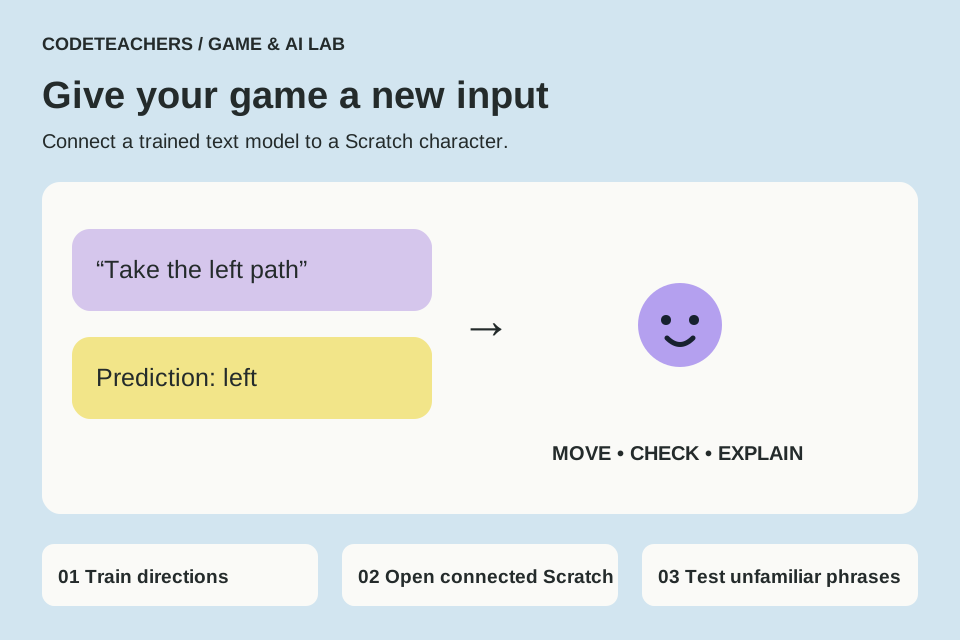
Make labels left and right. Add around ten varied example phrases to each, such as “go left,” “head west,” and “take the left path,” with corresponding right-hand phrases. Keep a separate list of phrases you will test later. This teaches a model from examples; it is different from writing an exact-word if statement.
STEP 03
Train and inspect the predictions.
Use the project’s Learn & Test area to train and try unfamiliar phrases. Record which label wins and whether that agrees with your intent. Try a nonsense sentence too: the model may still choose a direction. More examples can help, but no threshold guarantees a sensible answer for every input.
STEP 04
Open the connected Scratch editor.
Choose the project’s Make area and its Scratch option. This is essential: the standard Scratch website does not automatically have your model’s blocks. Draw a character at the center and two paths. Use the project-specific recognition block to classify answer from an ask-and-wait block. Block wording varies with the selected model; use the help and worksheet inside your project. The logic below is a build plan, not literal blocks to paste.
when green flag clicked
go to x: (0) y: (0)
forever
  ask [Which way should I go?] and wait
  set [Prediction] to (model result for answer)
  if <(Prediction) = [left]> then
    change x by (-40)
  else
    if <(Prediction) = [right]> then
      change x by (40)
    else
      say [Try another direction.] for (2) seconds
    end
  end
  if <(x position) > (200)> then set x to (200)
  if <(x position) < (-200)> then set x to (-200)
end
STEP 05
Add a human checkpoint.
Show the prediction before moving if you want the player to confirm it. If the chosen model exposes confidence, experiment with a minimum confidence and a “try again” response; test the threshold instead of assuming it fixes every error. Add goals at the ends of the paths only after movement works. Save through the connected editor and retain the model project as well. An .sb3 file alone may not preserve an external model or service.
Test it before you call it finished.
- Unseen direction phrases are tested separately from training phrases.
- The Scratch editor contains your project’s model blocks.
- Predictions trigger the intended movement and the character stays visible.
- You can show a failure and explain what the model depends on.
Make it yours.
Turn the paths into a treasure hunt. Compare the trained model with a version that checks exact words. Which inputs work in each? Do not call a rule-based fallback machine learning.
Show someone your project and explain one decision, one bug you fixed and any help you used. Save a local copy. Ask an adult before publishing a project or sharing identifying information.
← Explore the Kids Game & AI Lab