Continue the free AI Builder Lab →
Practice time: 45–75 minutes · Adult or adult-led learning
Start here: Create your first AI video storyboard
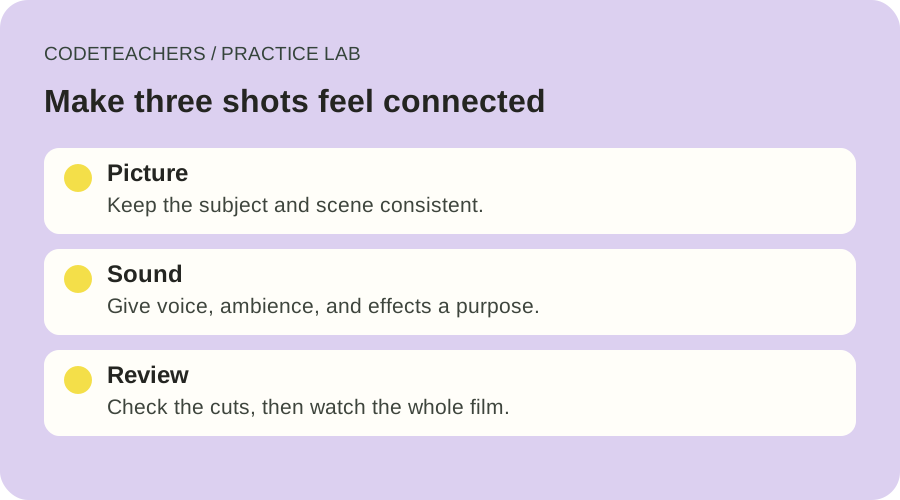
Three attractive clips can still feel like three different films. The pot changes shape, the light jumps to the other side, or every cut brings a new wall of sound. This follow-up helps you connect the shots from the seedling exercise into one short, understandable sequence.
You can complete the planning and review worksheets without buying credits. Generating or editing media requires an eligible account and whatever usage your chosen tool charges. The diagrams here are teaching plans, not screenshots of a finished Higgsfield film.
1. Write down what must stay the same
Start with the fictional seedling reference image from the first lesson. It was generated with OpenAI image generation and is an input for practice, not a Higgsfield output. Open the continuity worksheet beside it.
Record observable details: the pot’s folds, the number and placement of visible leaves, the envelope’s position, the tabletop color, and the direction of the light. Describe what you can actually see. Do not invent an exact detail because a prompt mentioned it.
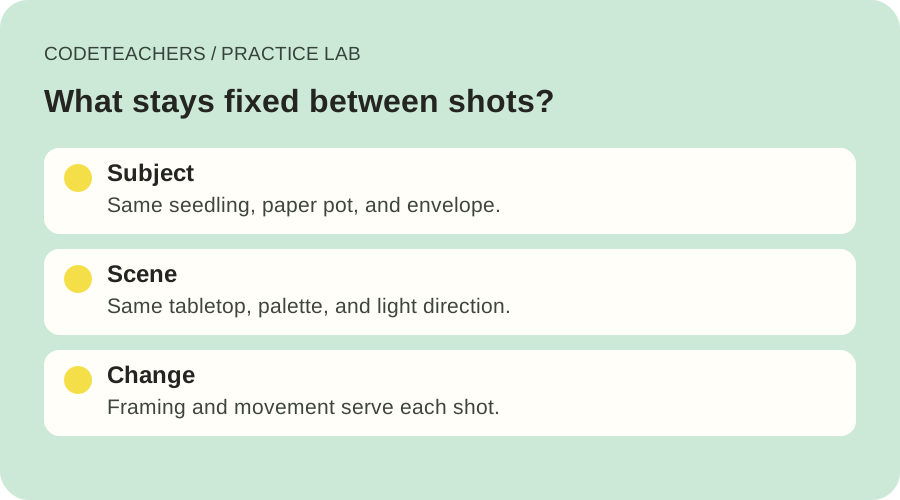
Higgsfield’s continuity guide recommends carrying reusable visual references across generations. For this small exercise, reuse the same approved subject and scene reference wherever your chosen workflow supports it. References improve consistency; they do not guarantee a perfect match.
2. Give each shot one job
Use a 12-second edit as a planning target: four seconds to establish the scene, four to examine a detail, and four for the ending. Your generation tool may offer different durations; trim usable material in the editor rather than assuming every model can generate exactly four seconds.
- Shot A, establish: show the pot and envelope together with a gentle push toward the subject.
- Shot B, detail: move closer to the paper folds and leaves. Keep the light direction and materials consistent.
- Shot C, resolve: return to a calm composition with space for a short closing line added in the editor.
Keep the subject description and visual reference stable. Change the framing or motion needed for the current shot. Save the prompt, model, relevant settings, and take number so a successful result is reproducible as far as the tool allows.
Compare each take with the original reference, not only with the previous generated take. Otherwise, a small change in one clip can become the new baseline and drift further in the next.
3. Review the joins before adding music
Place the best takes in order and watch with sound muted. At each cut, pause on the last frame of the outgoing shot and the first frame of the next. Check the pot’s shape, envelope position, leaf structure, lighting, and direction of movement.
Mark each problem in the continuity sheet with a time, a concrete observation, and a next action. “The envelope moves from right to left at the cut” is actionable. “Looks AI” is not. Try a tighter cut or a different approved take before regenerating an entire sequence. If the subject visibly transforms, do not hide it under an elaborate transition.
4. Build a sound plan in layers
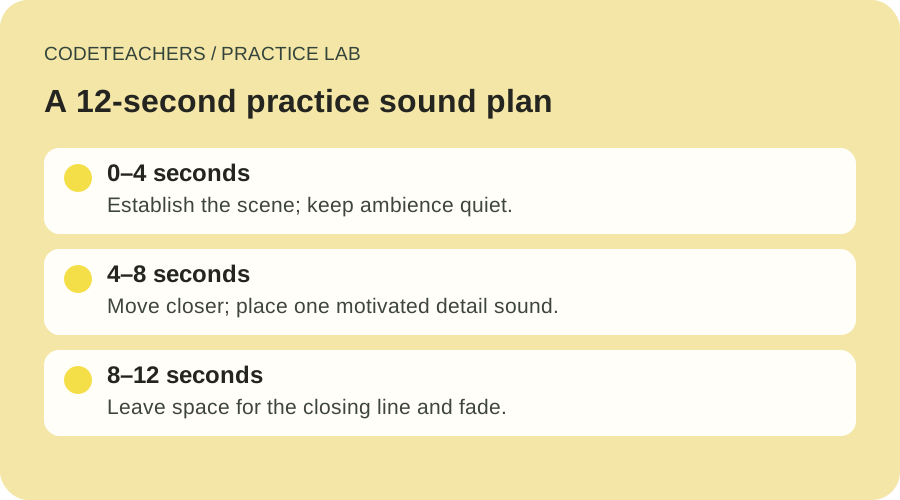
Download the sound cue sheet. Begin with three optional layers: voice for meaning, ambience for a sense of place, and a specific effect for a visible or implied action. Music is a fourth choice, not a requirement.
For this exercise, try the original line “Small ideas grow when you give them a little care.” Record it yourself, use an authorized voice, or keep the film caption-only. Avoid adding a loud rustle when nothing moves. A sound should have a reason to be there.
Higgsfield provides audio tools alongside its image and video workflows; its current audio guide explains the available options. Features and controls differ by model and account. Do not assume that a silent video generation includes sound or that every video model supports the same audio workflow.
If you already use ElevenLabs for narration, export audio you have permission to use and place it on your editor’s voice track. Keep the chosen voice and delivery consistent. You do not need voice cloning for this project, and you should not use another person’s voice without authorization.
5. Listen, caption, and export a test
Play the sequence on headphones and a phone speaker. Lower background sound until every word is easy to understand. Listen for abrupt cuts, unwanted clicks, distortion, and a volume jump between shots. Use short fades when they help, and avoid fixing a quiet voice simply by pushing every track louder.
Add and proofread captions for the final spoken line. Check timing and legibility on a phone, including the closing frame. Then watch the exported file all the way through; the editing timeline alone is not the deliverable.
Help me review this three-shot seedling film using the reference and observations I provide. Separate continuity issues from intentional framing changes. For each issue, list the shot or time, observable evidence, and the smallest useful correction. Review whether voice, ambience, and effects have a clear purpose. Do not claim to have watched or heard media you cannot access. Keep proposed changes separate from verified results.
What to keep with your finished film
Save the reference, selected take names, completed continuity sheet, sound cue sheet, and exported review copy. Credit AI-assisted media and retain any required asset licenses. If you only completed the plan, label it a storyboard and sound plan. The next useful improvement should come from the review: one confusing cut, one drifting detail, or one line that is hard to hear.
Written for adults and adult-led learning. Use eligible accounts and follow each tool’s age requirements. Product documentation checked October 28, 2026.